
Setting up conditional logic in bundles
Set Up Conditional Logic
Conditional logic lets you show or hide products based on a shopper’s previous selections. This feature creates a smarter, more personalized shopping journey—surfacing only the most relevant products as shoppers move through each step.
Follow these steps to configure conditional logic for your store.
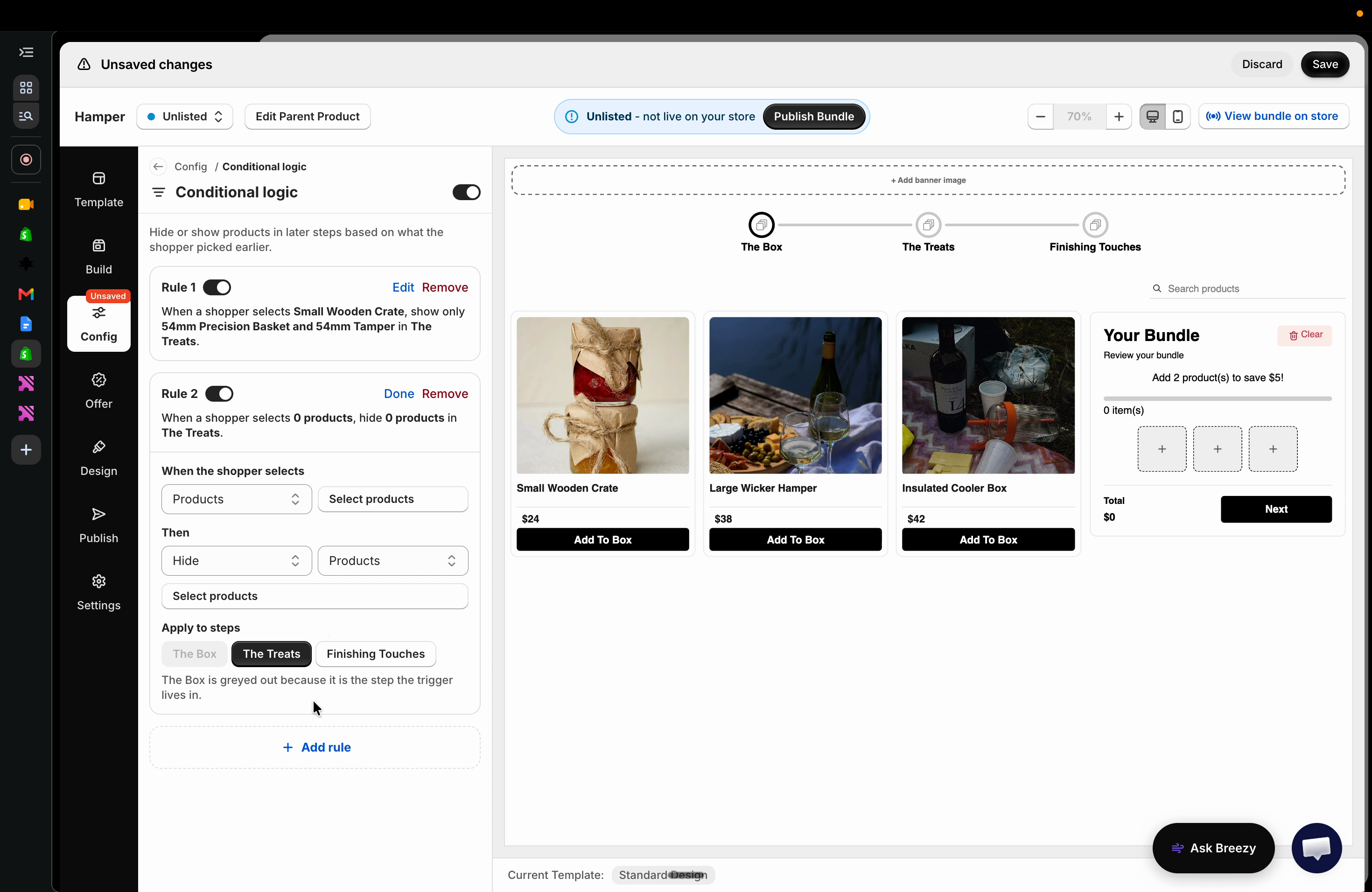
Step 1: Open config, then select conditional logic.
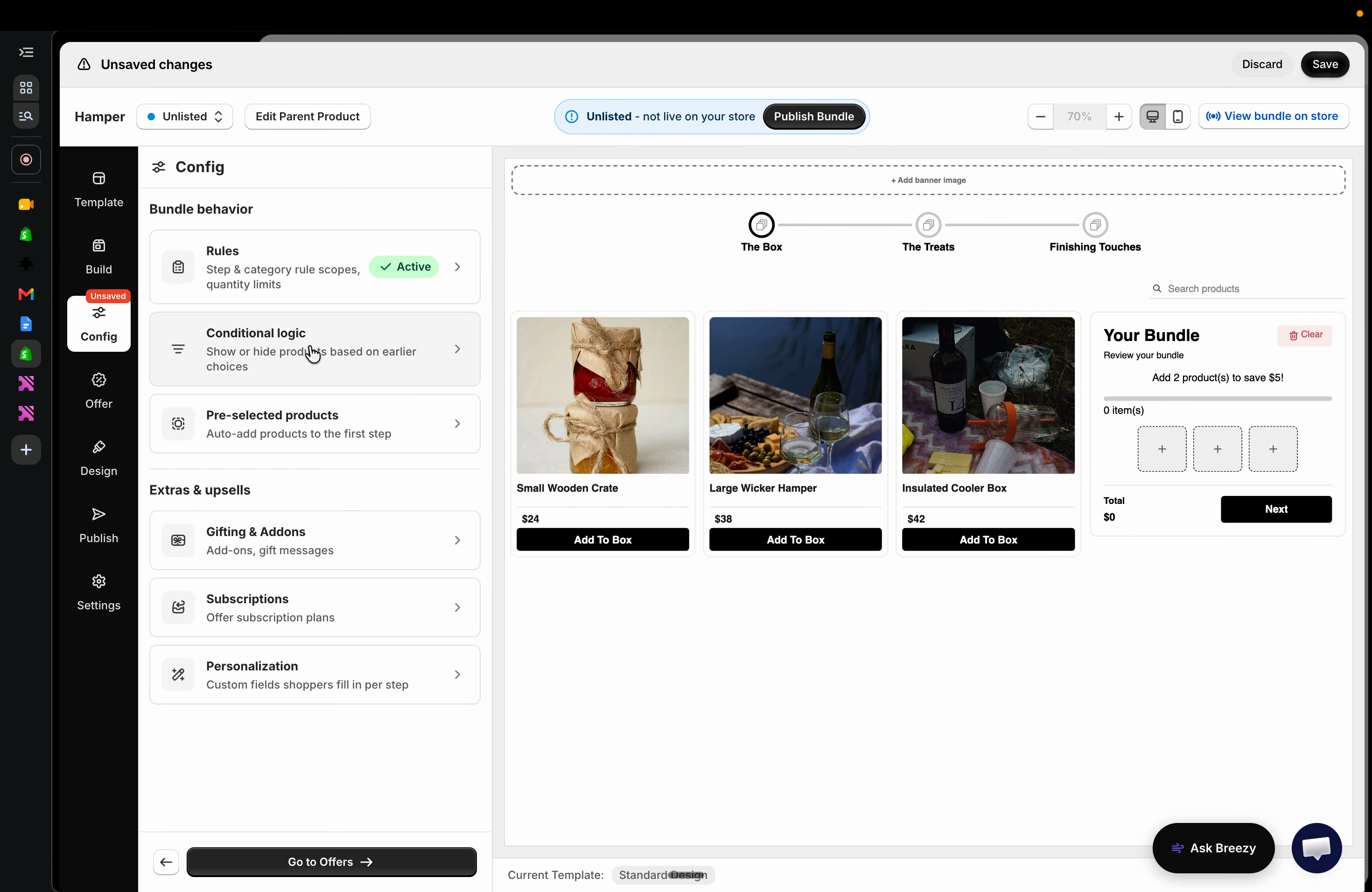
Step 2: Click Add Rule to start a new logic condition.
Step 3: Choose the products that will act as your Trigger Product—the initial items whose selection influences later steps.
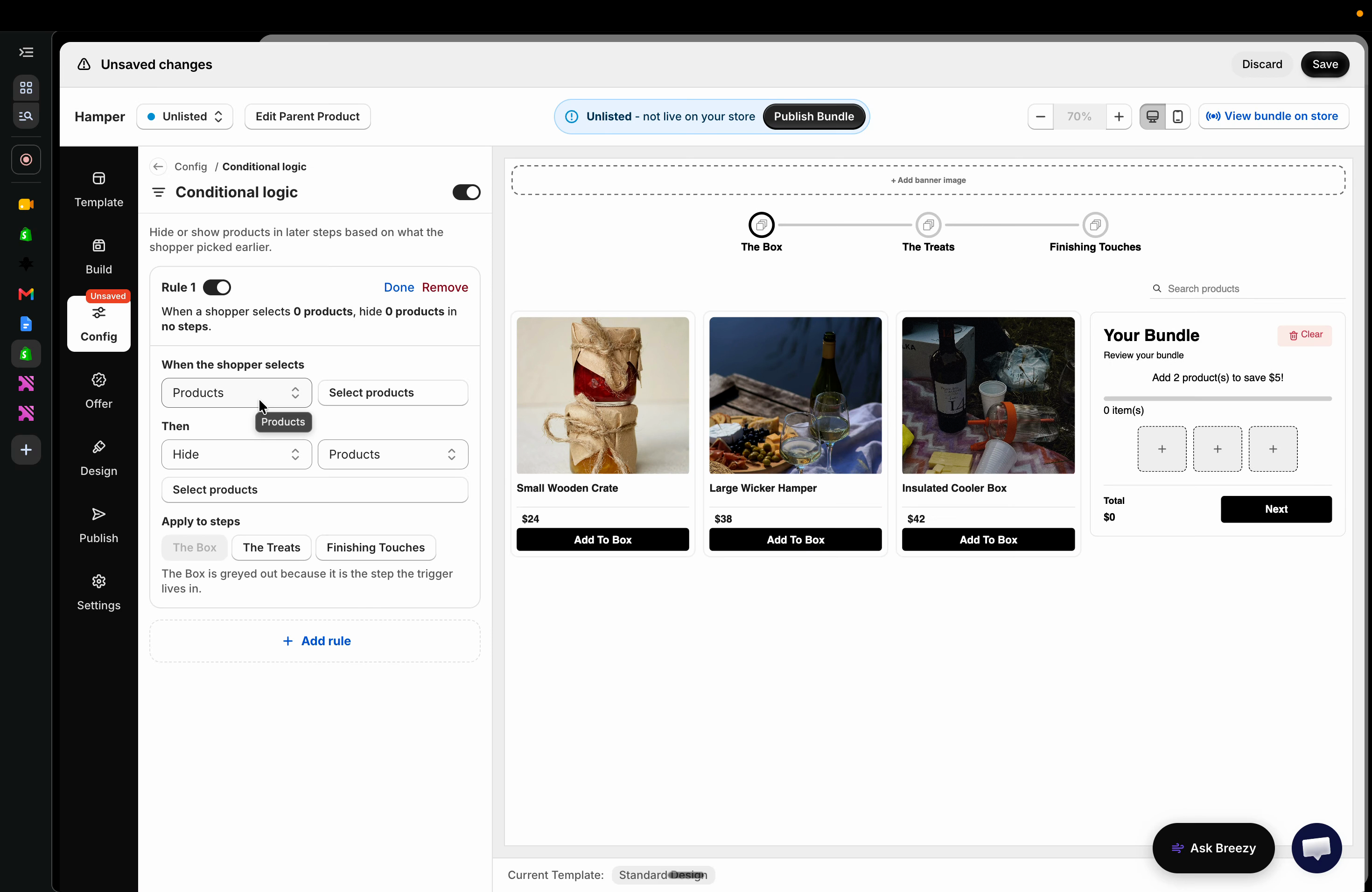
Step 4: Pick which products or product groups will be affected by the shopper’s choices.
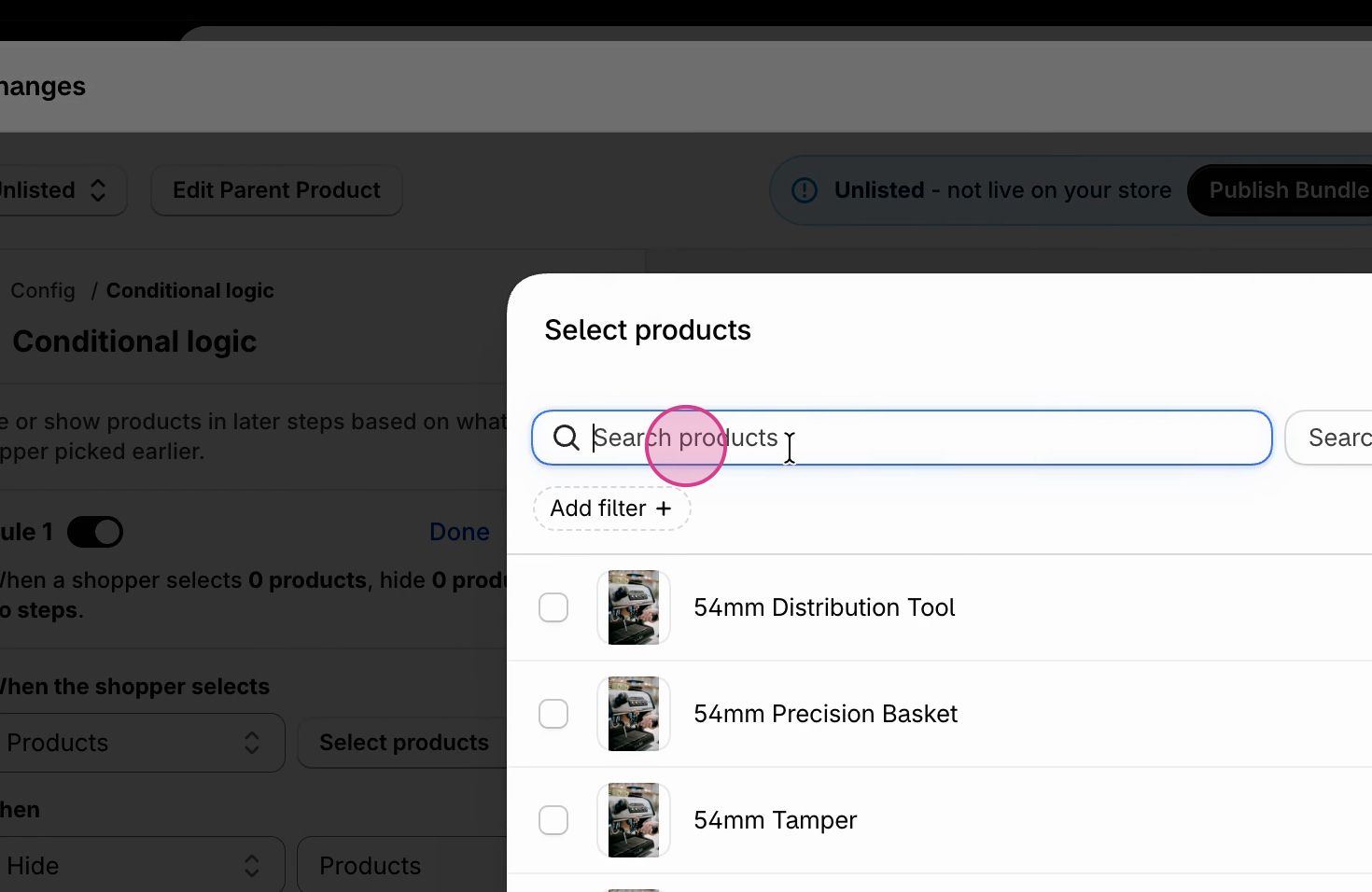
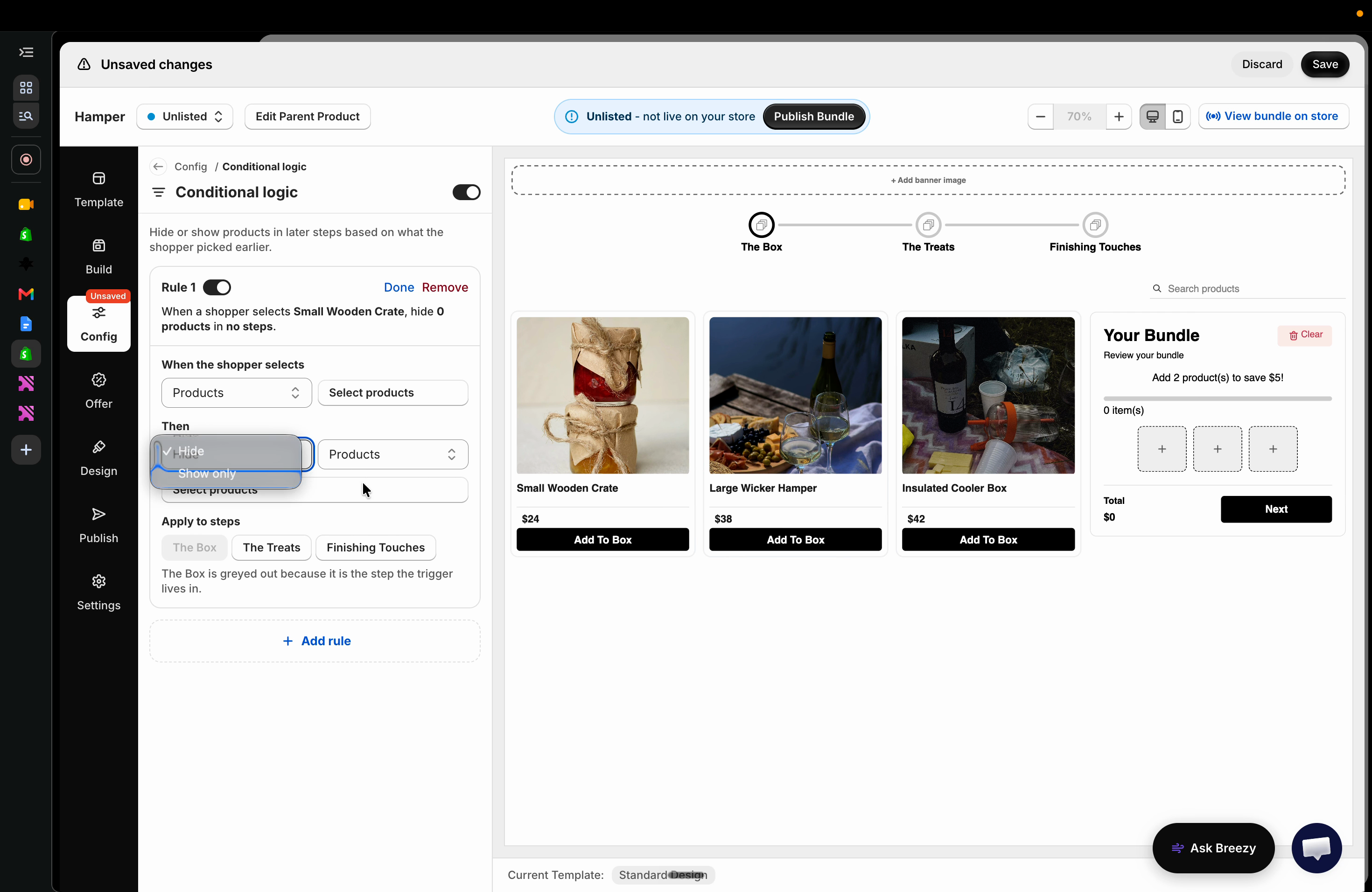
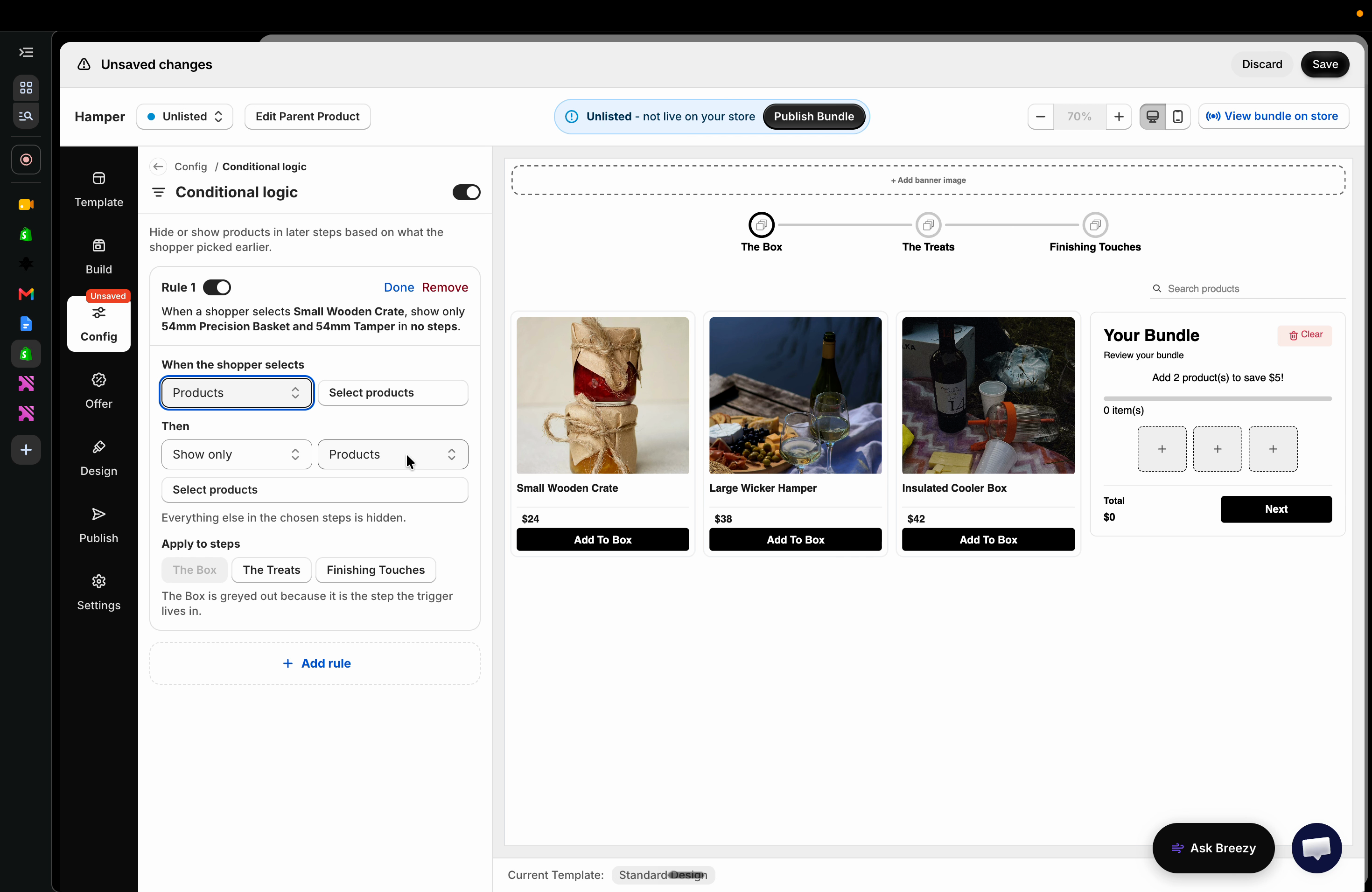
Step 5: Decide whether to Show Only selected products, or to Hide certain products in the following steps.
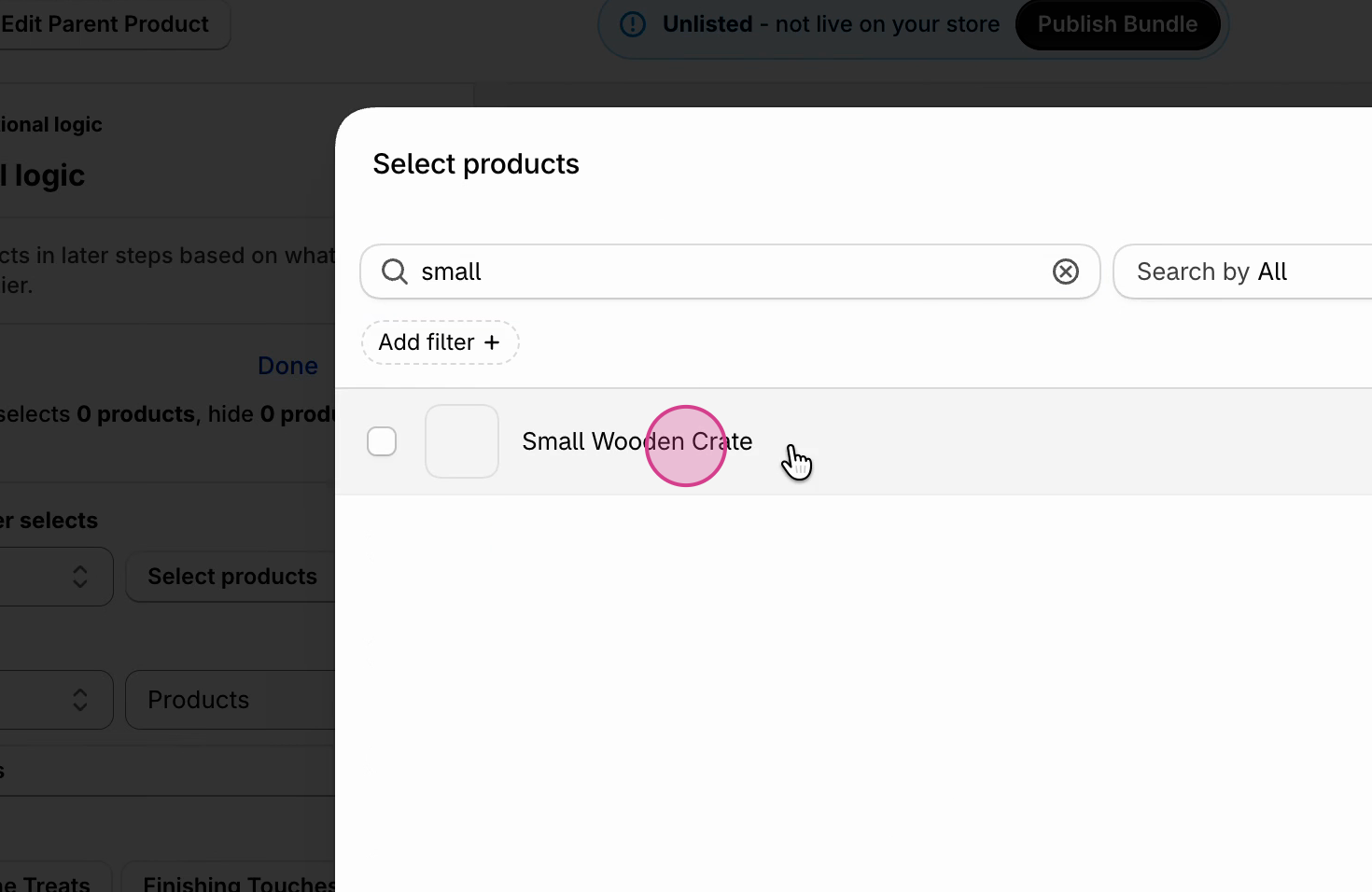
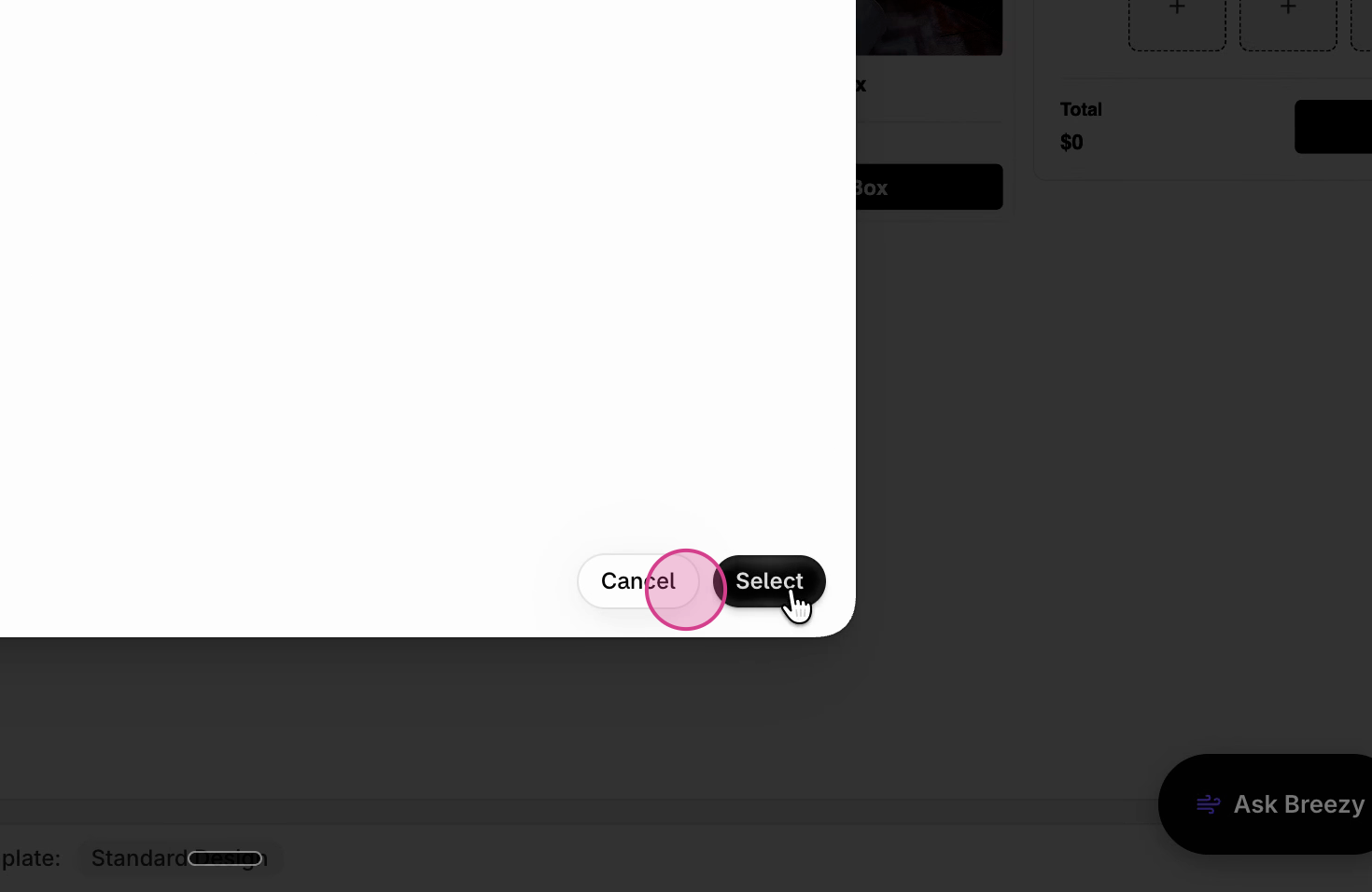
Step 6: For example, choose Show Only to display just specific products if the trigger product was selected.
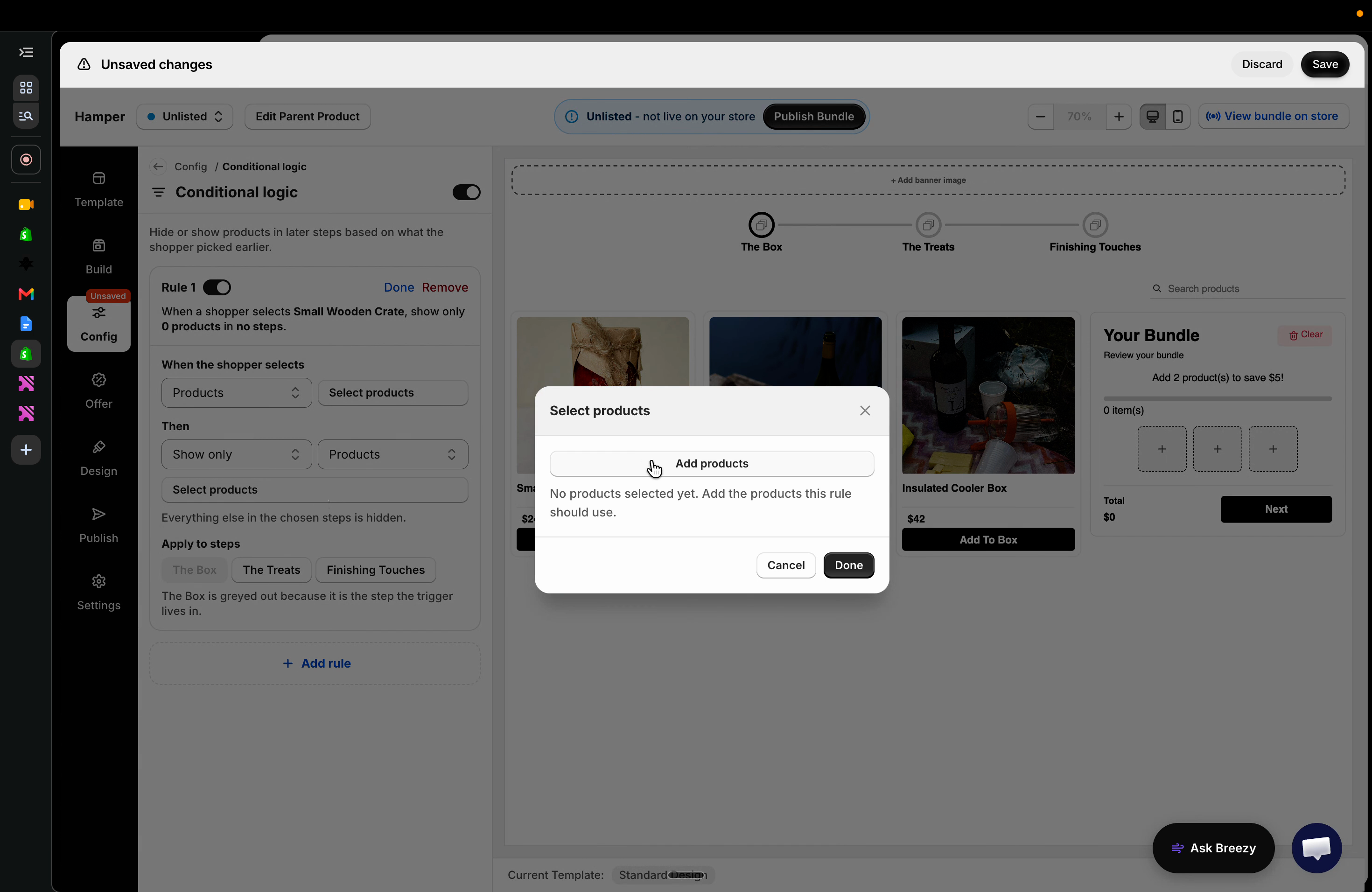
Step 7: Select which products to show in subsequent steps.
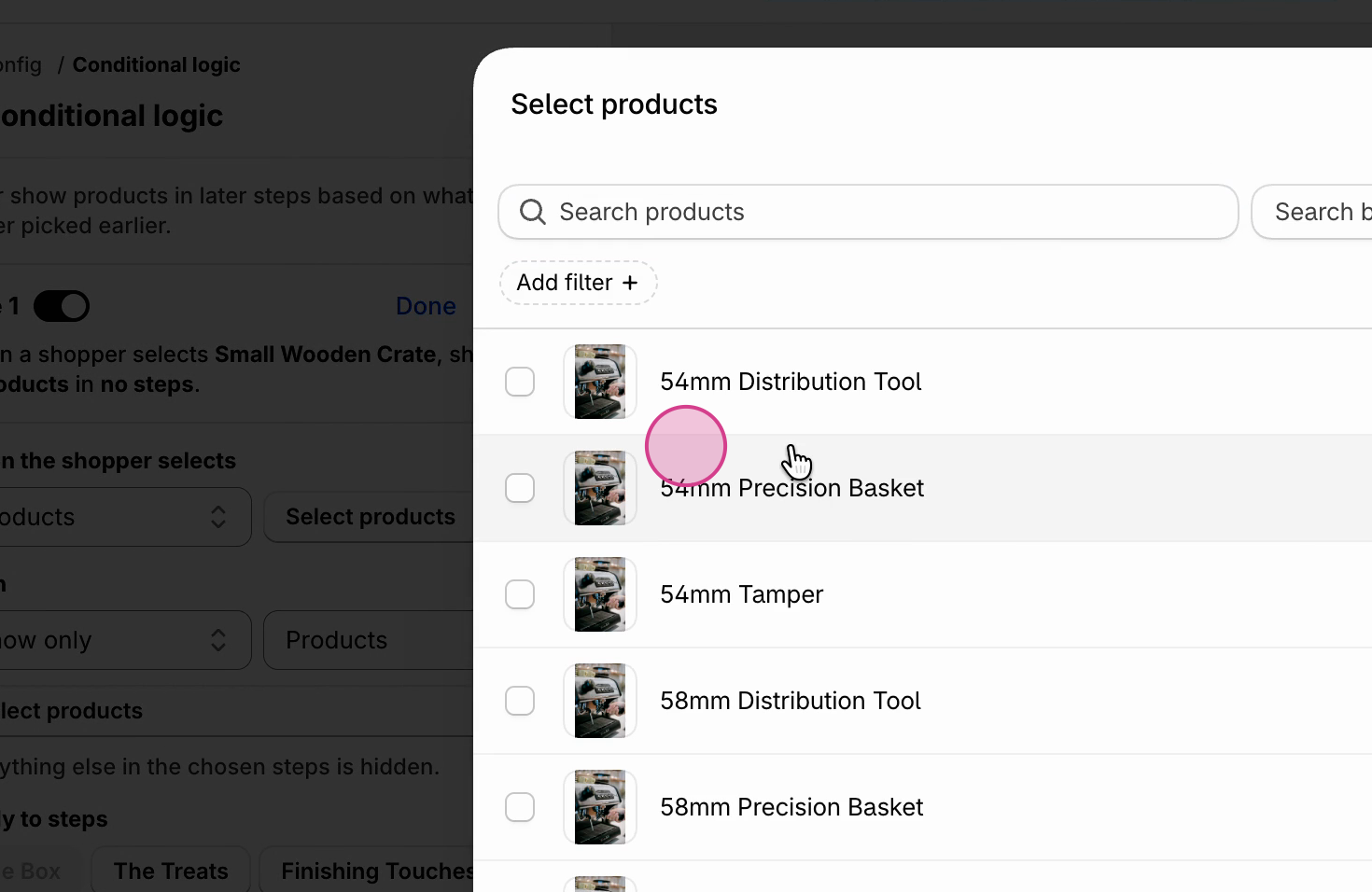
Step 8: Set the conditions for your triggers based on product tags, variant options, or meta fields from your store.
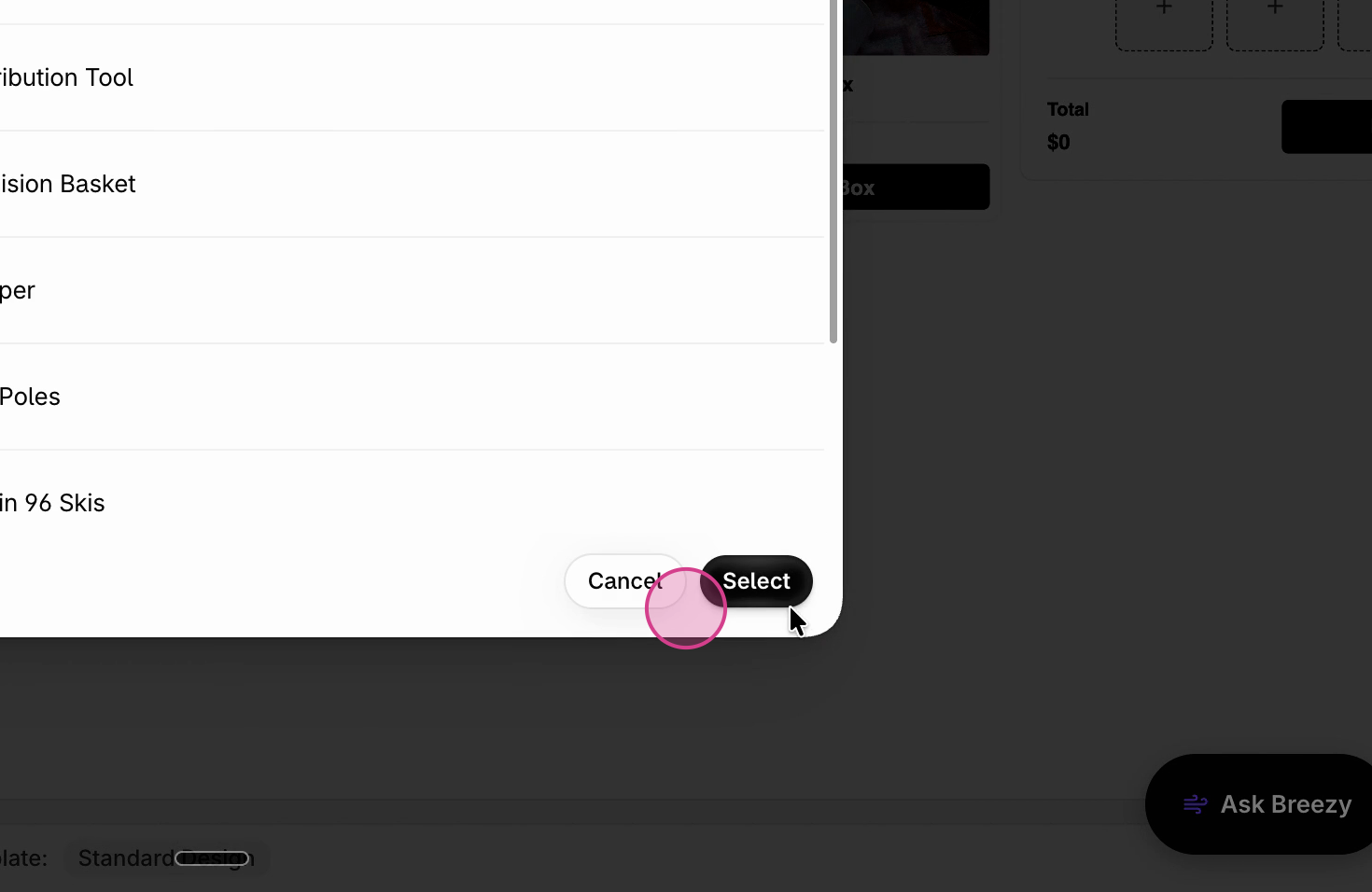
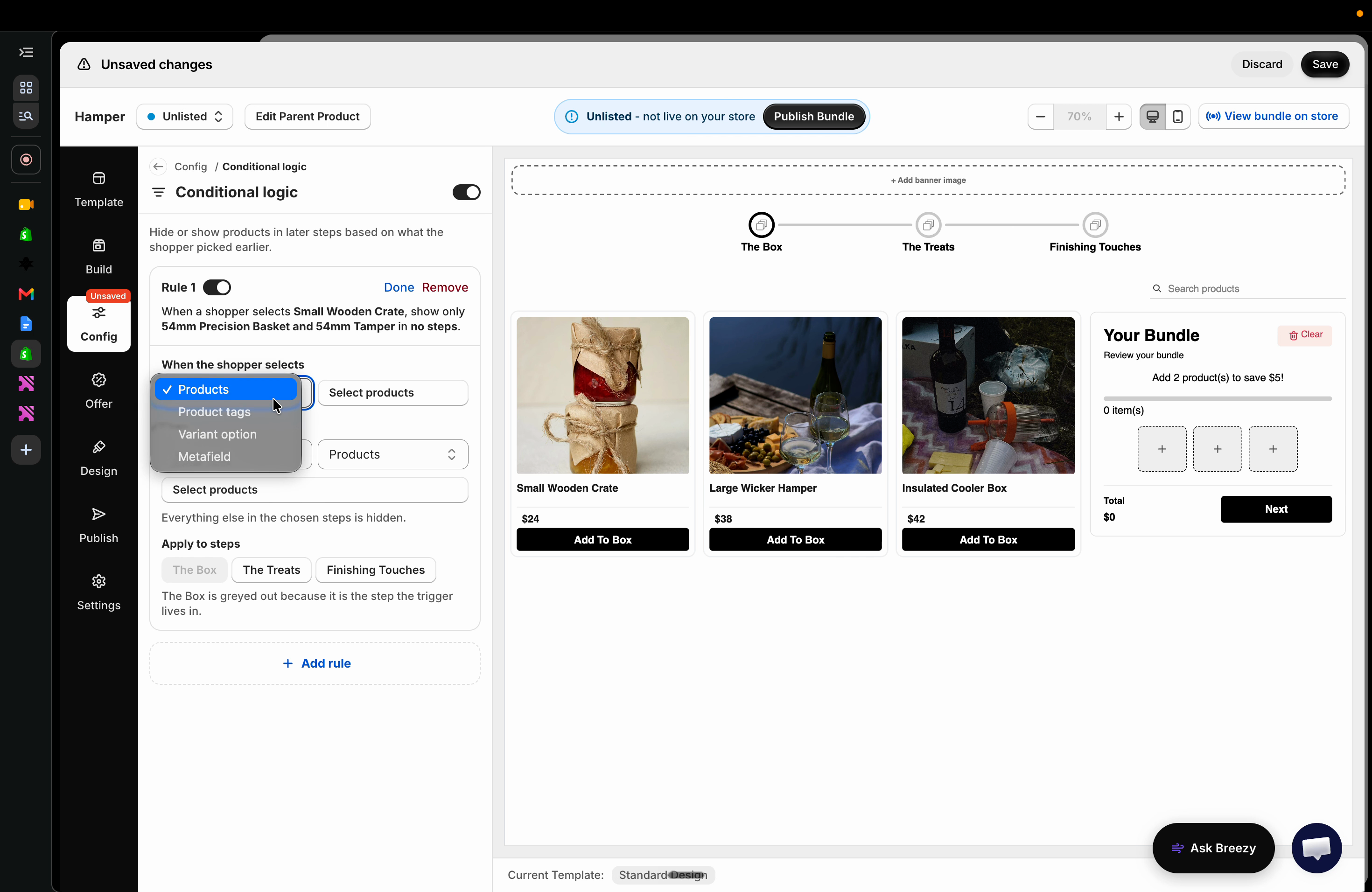
Step 9: You can base showing or hiding logic on product tags, variant fields, or meta fields for even more targeted control.
Step 10: Choose which steps in the shopper journey will use this conditional logic.
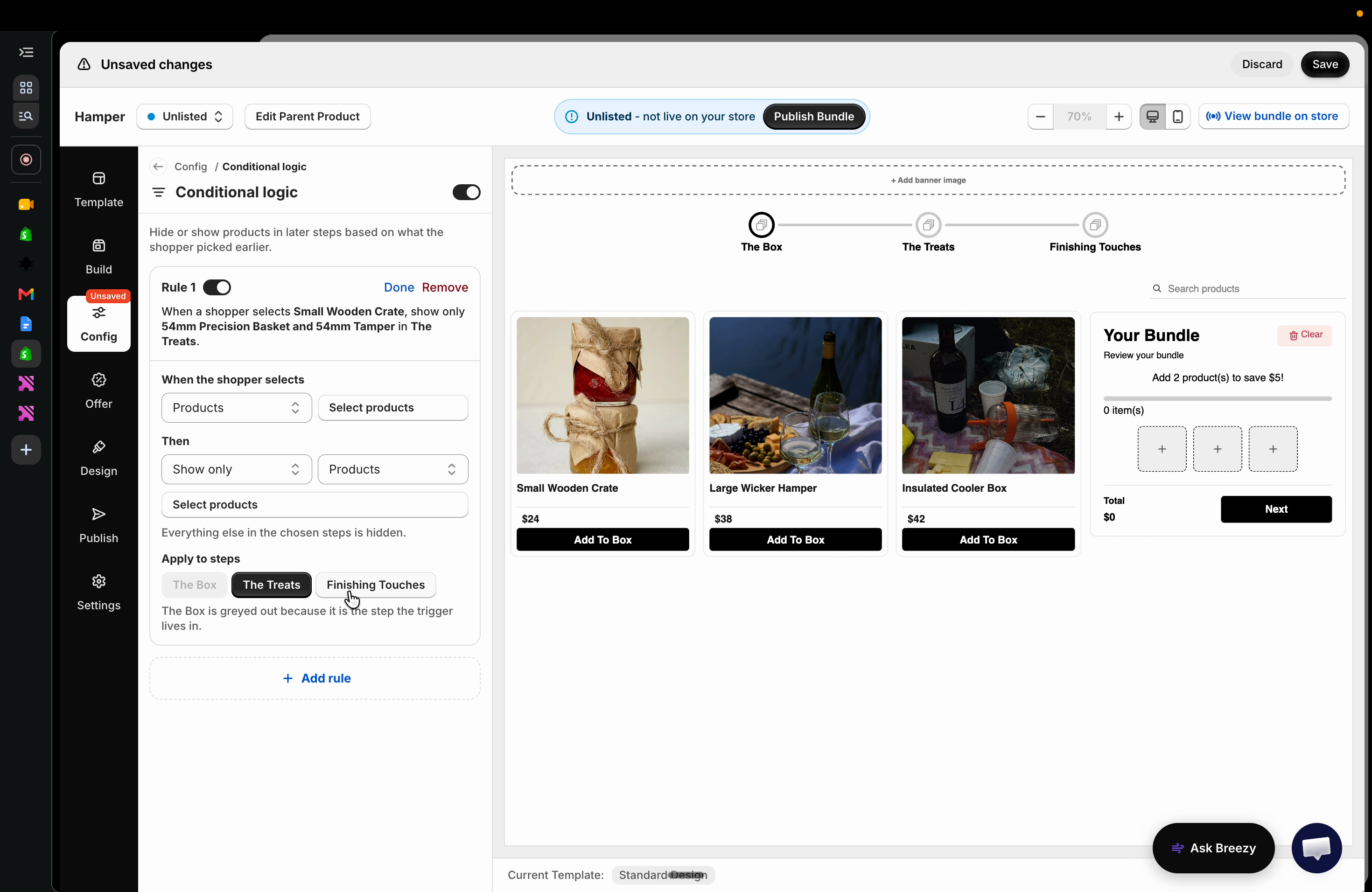
Step 11: Set up tiered logic to show or hide different products or steps, triggered by earlier selections in the flow. This approach guides buyers smoothly and keeps the path focused.
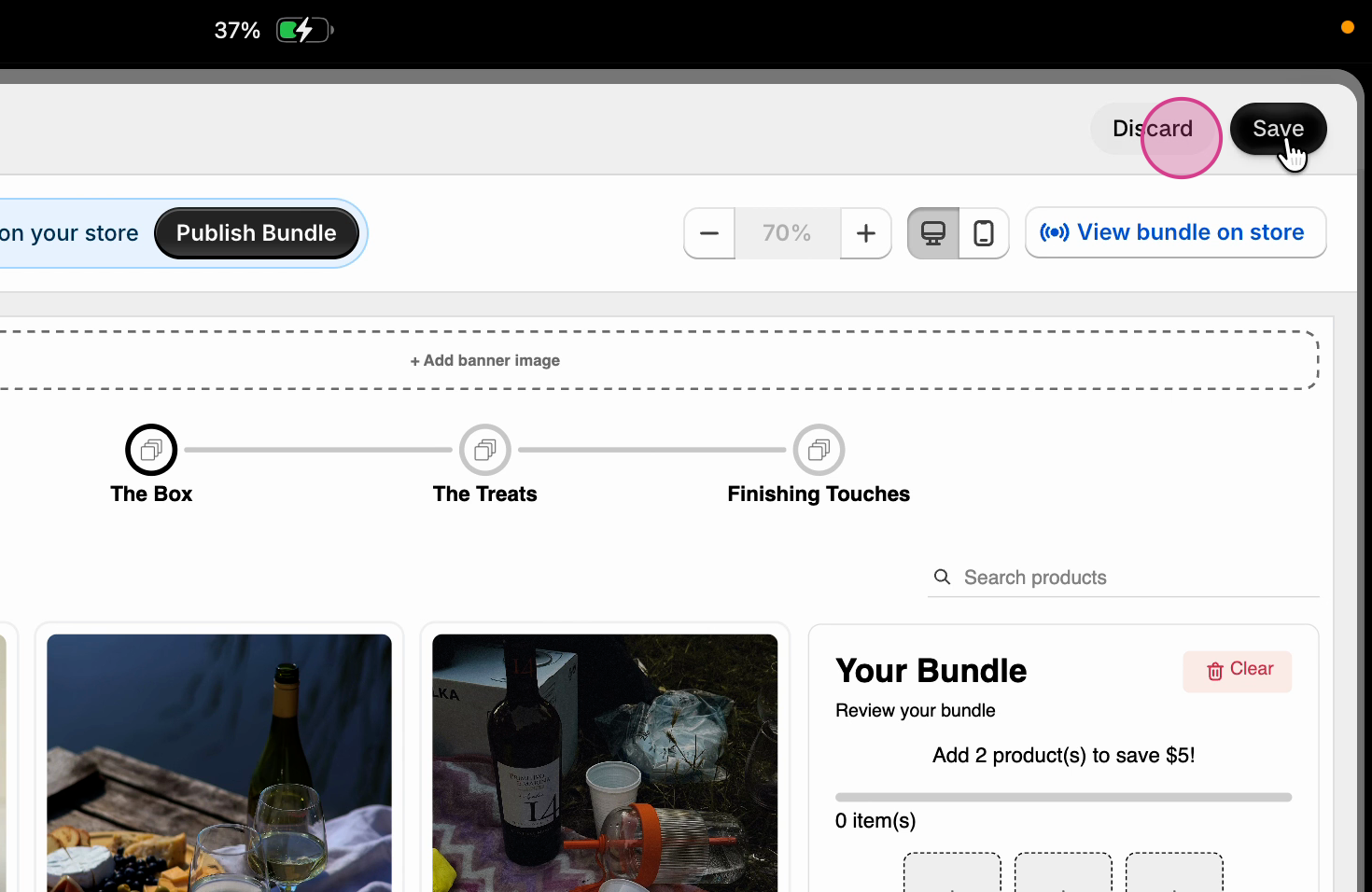
Step 12: When everything’s set, click Save.
Conditional logic makes shopping intuitive, ensuring buyers only see products relevant to their earlier choices. Try it out to streamline the user experience and make complex product selections a breeze.
Updated on: 11/11/2026
Thank you!